



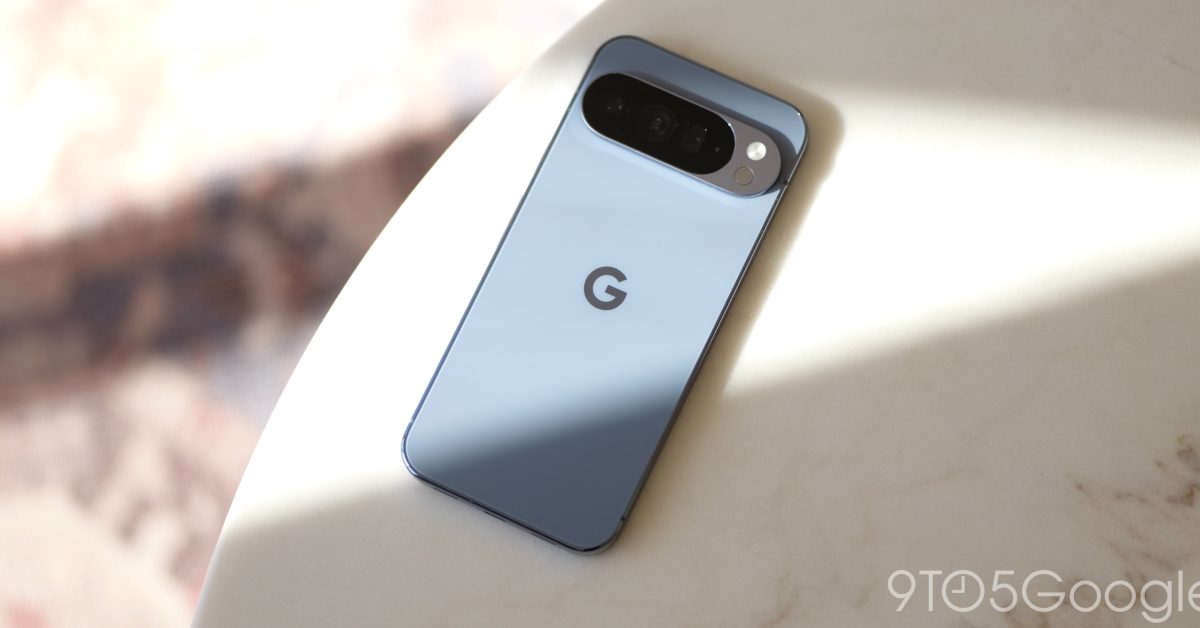
The Pixel series offers some of the finest Android devices on the market. While Android’s initial setup is user-friendly, a few adjustments will enhance your experience on your new Google Pixel.
Setting Up Emergency SOS and Car Crash Detection
One of the first adjustments I make when setting up a Pixel is to activate and customize the Emergency SOS and Car Crash Detection features. These functions can be crucial in emergencies, although hopefully, you’ll never need to use them.
Emergency SOS is triggered by five presses of the power button, initiating a process that may require a second confirmation or will directly call for help, share your location with authorities, and begin recording video.
In a similar vein, Car Crash Detection can automatically contact emergency services if the Pixel detects an incident, and it can also share your location with designated emergency contacts.
Useful Gemini Features in the Phone App
The Gemini features embedded in your new Google Pixel enhance many of Android and Google’s default apps. In the Phone app, you can find several features that distinguish the Pixel line from other Android devices and even iOS devices.
By navigating to settings through the hamburger menu, you can access the Call Assist features available. Here, I recommend activating features such as Scam Detection, which alerts you about potential scam calls.
Additionally, Hold for Me and Direct My Call can be very beneficial for business calls, providing easy navigation through menus and eliminating the annoyance of hold music.
Customizing Quick Settings Tiles
With Android 16, Google refined the Quick Settings shade further, allowing more flexibility in tile arrangements and sizes. For instance, I prefer to expand the Wallet tile to easily check my active card and also enlarge the alarm tile for added information.
To custom-fit any tile, just tap the edit pencil in the Quick Settings shade and adjust each tile using the size slider.
Personalizing the Lock Screen Clock
You can customize your lock screen clock by long-pressing the home screen and navigating to the Wallpaper & style section, then switching to the lock screen preview. There are eight clock styles, each offering unique designs along with a color picker for personalization.
Activating Screen Protector Mode
If you are using a screen protector, make sure to enable Adaptive touch. Go to Display & touch in the settings to adjust the touch sensitivity. This feature optimizes the Pixel’s responsiveness according to its environment, including the presence of a screen protector.
Adjusting Display Resolution
While in the display settings, take a moment to check Screen resolution. The default for the Pixel 10 Pro is 1080 x 2404, but it can be increased up to 1344 x 2992. Although the difference may be slight, some users prefer to upgrade it for potentially better clarity.
However, it’s important to note that increasing the resolution can affect battery life. Overall, these settings offer a solid starting point to maximize your experience with your new Pixel.
If there’s another crucial setting you think should be highlighted, feel free to share it in the comments!
